Touching up map images in GIMP
Inspired by articles by Robert Simmon:
- A Gentle Introduction to GDAL Part 4: Working with Satellite Data
- Making Sense of Satellite Data, an Open Source Workflow: Color correction with GIMP
- Making Sense of Satellite Data, Part 5: Saturation & Sharpness
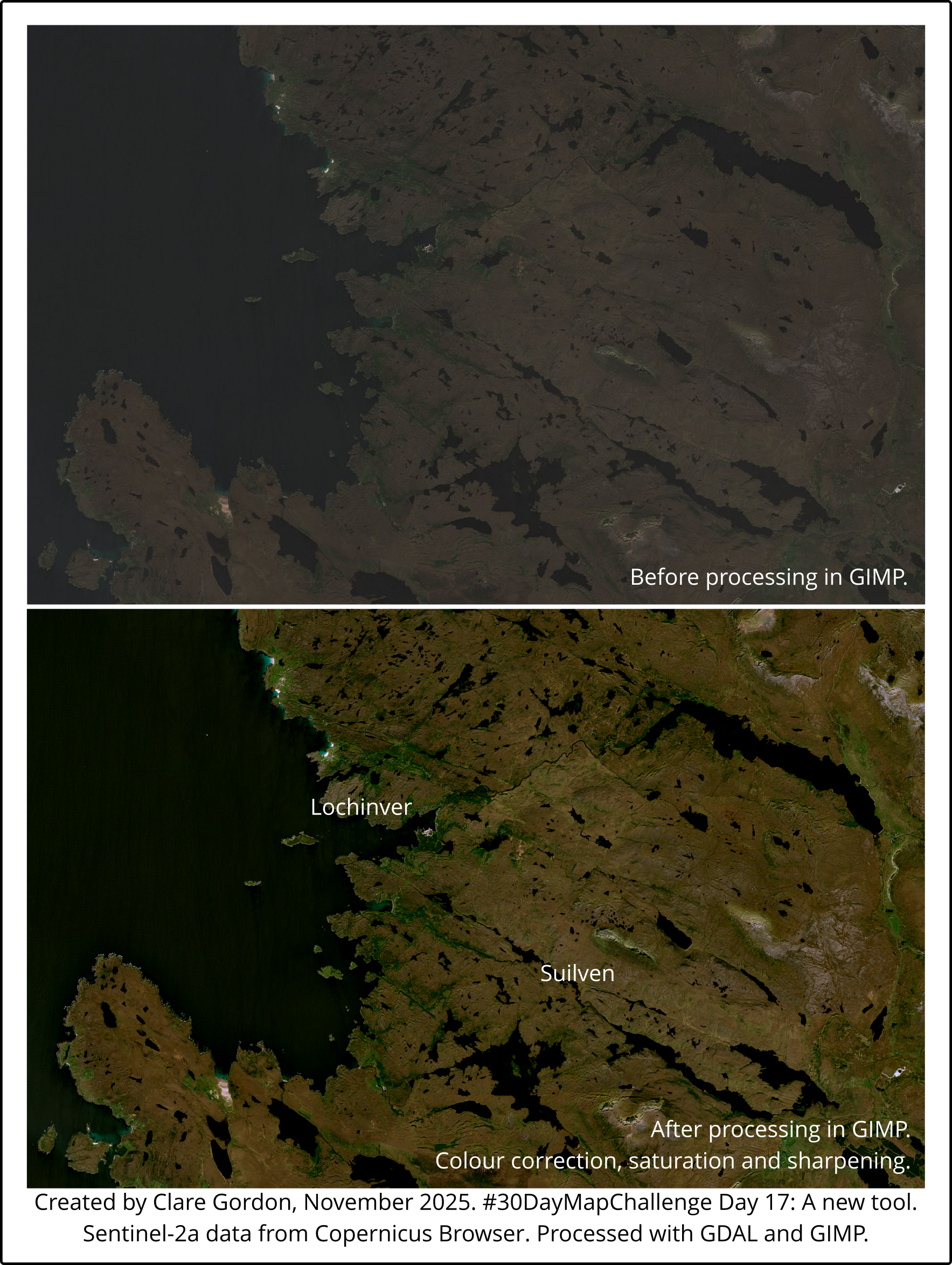
I’ll make a true-colour image satellite image of Lochinver and Assynt, N.W. Highlands.
Data
- Downloaded data from Copernicus Browser (free registration) - Sentinel-2A with as small amount of cloud as possible (21st May 2025 and most days for a few weeks before that was virtually cloud-free in UK) for your area of interest.
Tools used
- New GDAL application - on command line. Installed GDAL via GIS internals as that gives me version 3.11.3 of GDAL which includes the new commands.
- GIMP
What did I learn?
- Experience with the new GDAL application - much more consistent and not doing so much with a single tool, e.g. gdal_translate.
- How to make alterations to an rgb satellite image in GIMP and then export again retaining GeoTIFF GIS data.
What could I do differently or want to find out?
- Need to practice more with the colour correction tools. Wasn’t completely happy with this one.
- Someone on Mastodon mentioned it works with elevation - I’d like to try that out.
Process (more detail about how I made the map)
Initial processing of data with GDAL
Want to create an RGB image, so need bands B02, B03 and B04 from Sentinel-2a.
Start by checking information of one of bands - particularly to check CRS.
gdal raster info rawdata\R10m\T30VUK_20250521T114401_B02_10m.jp2 --format=textCRS = EPSG:32620
Files are all jp2 and I’d like to convert them to tiff and at the same time clip the area I want - to save space.
Use gdal raster clip with a bounding box of coordinates for the Lochinver area in the correct CRS in the order xmin, ymin, xmax, ymax. Need to do this for all three colour bands.
gdal raster clip --bbox=350000,6430000,390000,6460000 --bbox-crs=EPSG:32630 rawdata\R10m\T30VUK_20250521T114401_B02_10m.jp2 processed\Band02.tif

gdal raster clip --bbox=350000,6430000,390000,6460000 --bbox-crs=EPSG:32630 rawdata\R10m\T30VUK_20250521T114401_B03_10m.jp2 processed\Band03.tif

gdal raster clip --bbox=350000,6430000,390000,6460000 --bbox-crs=EPSG:32630 rawdata\R10m\T30VUK_20250521T114401_B04_10m.jp2 processed\Band04.tif
Now I should be able to merge the three bands:
- Red = Band 4
- Green = Band 3
- Blue = Band 2
gdal raster stack processed\Band04.tif processed\Band03.tif processed\Band02.tif processed\rgb.tif --co PHOTOMETRIC=RGB --co COMPRESS=DEFLATELooks completely black in an image viewer, but can stretch values of each band to make the image visible.
First check min and max values of each band with gdal raster info --mm.
gdal raster info --mm processed\rgb.tif --format=textMake a note of computed min/max for each band. Mine are:
- Band 1 (red): 0, 8256
- Band 2 (green): 0, 8164
- Band 3 (blue): 0, 7712
All bands are 16-bit integers, so could have values up to 65,536. To display the image, we can stretch, or scale, each band equally to create a quick preview (note: Not for analysis!).
Input the highest maximum for the source data.
gdal raster scale --datatype UInt16 --src-min 0 --src-max 8256 processed\rgb.tif processed\rgb_stretched.tif --co COMPRESS=DEFLATEResult should be visible in an image viewer, if not terribly clear.
Optimizing the image in GIMP
GIMP can open GeoTIFF, make alterations, then export again as a GeoTIFF which will open correctly in GIS.
Colour correction
All of this is in inexact science - it depends on your image and your perception of the colours in it.
https://medium.com/@robsimmon/making-sense-of-satellite-data-an-open-source-workflow-color-correction-with-gimp-7ddae0360fea
- Tonal adjustment:
Colors > Curves.... CheckValuechannel is selected. Click on line across middle and pull up and left to brighten image. Then move lower-left of curve to right. Darker shadows/highlights still bright. May need to pull centre of curve down a bit. - Black point colour adjustment: Still in curves, change
ChanneltoBlue. Drag lower-left of line towards right. Aim for towards the point where histogram starts to rise. Repeat with green and red. Suggests moving blue more than green, more than red. - White point colour adjustment: May only need to move top-right of red channel slightly to left if have already scaled the image. Probably don’t need to do anything to green or blue.
Difficult! Not quite happy, but running out of time.
Saturation and sharpness
https://medium.com/@robsimmon/making-sense-of-satellite-data-part-5-saturation-sharpness-e21fac6272c7
Colors > Hue-Saturation...- best to be light-touchFilters > Enhance > Sharpen (Unsharp mask)...:- Set
Radiusto a large number, e.g. 50. - Set
Amountto somewhere in range of0.10to0.30. Only want to sharpen very slightly!
- Set
Saving as GeoTIFF
GIMP can then export the result as a GeoTIFF which will keep the original metadata and open in the correct location back in QGIS.
Export as...and save astif.- Tick the box
Save GeoTiff data.